
03-12-2026
Written By -
Gadget Right Now
Clearing cache on iPhone helps you minimize the expansion of unwanted data from applications. Most of the time we don’t need such a cache or forget about clearing them. As a result they build and take up a lot of important storage of your iPhones.
Let’s not take any time and find out how you clear or clean the iPhone apps cache easily. Let’s dive right in:
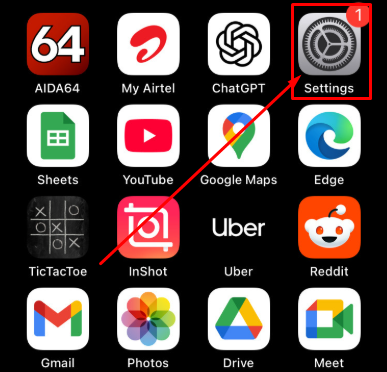
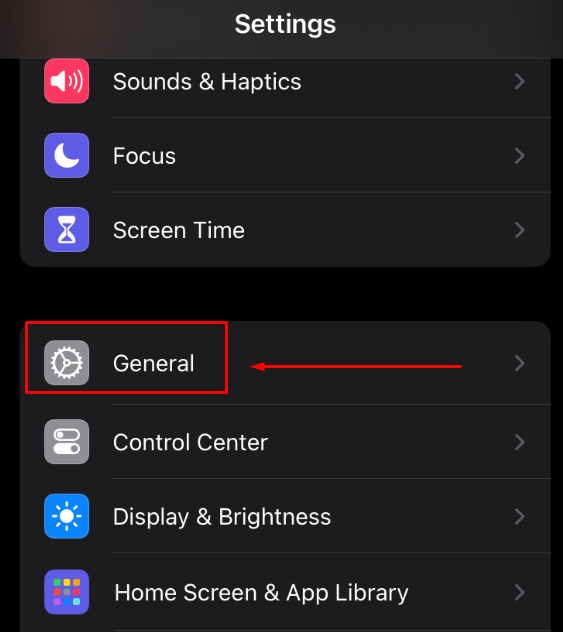
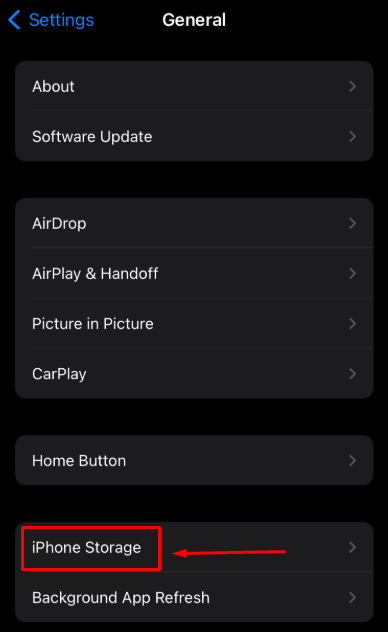
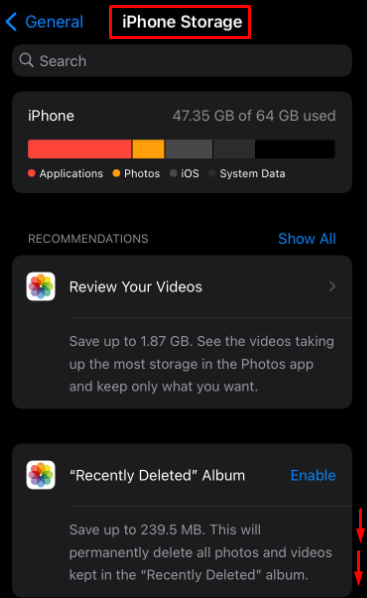
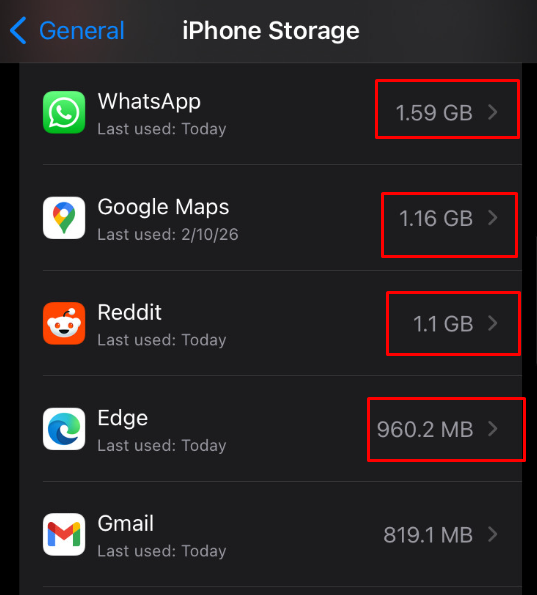
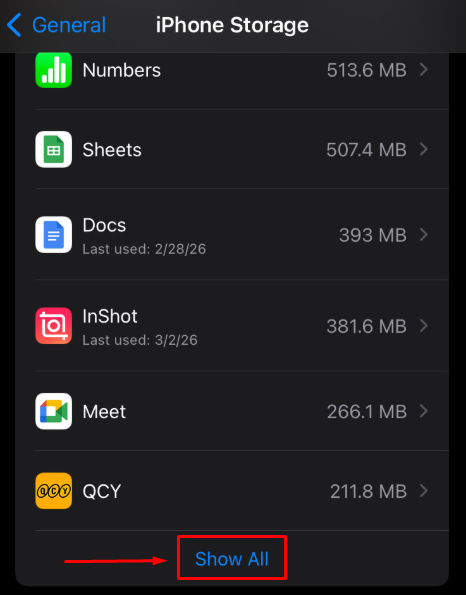
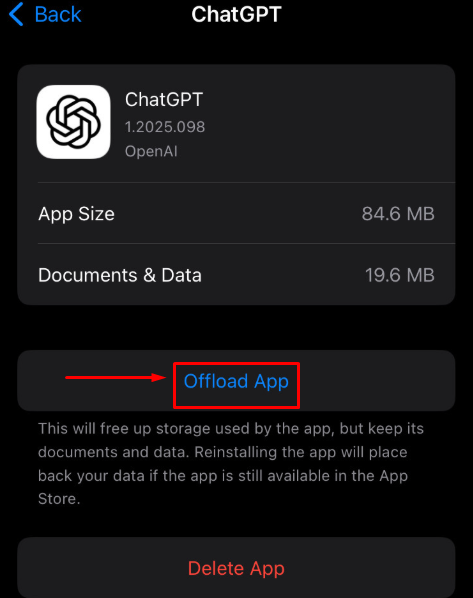
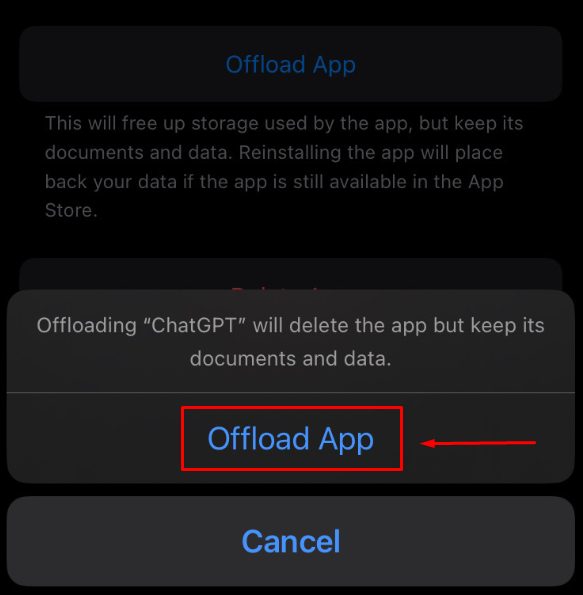
That was the simple way on how to clear cache on iPhone. If followed step by step, you can now clean cache of any third-party app of your iPhone. As always, stay tuned to gadget right now page to get informed on latest tech news and tips.
**Note: You might need to re-install the app from your iPhone’s App Store
Of course, it is surprisingly effective to clear app caches of storage of your iPhones.
You should clear your iPhone app cache during every new month. Although it is advised to clear app caches for whichever you don’t require for future need. For example: Browsers app caches.
When you don’t clear or clean your iPhone cache, then this unwanted cache takes up a lot of your iPhone’s storage. Which eventually leads to “full storage” issues. That is why it is ideal to clear up unwanted app caches on your iPhone.
Disclaimer
Due to continuous innovation & improvements, official specification is subject to change without notice. Accessories shown in the picture may or may not be a part of the standard equipment with the product. Model availability and features may vary based on region or version.
We try to deliver updated leak or rumor information from manufacturer websites, other reliable and trusted sources. It is advised to verify important details before making any decision about your desired product. Please inform us if you have found any mistake or wrong information.
Tips & Tricks
March 15, 2026
How to turn on low power mode on iPhone?
Tips & Tricks
March 4, 2026
How to Reduce iPhone Brightness Even More?