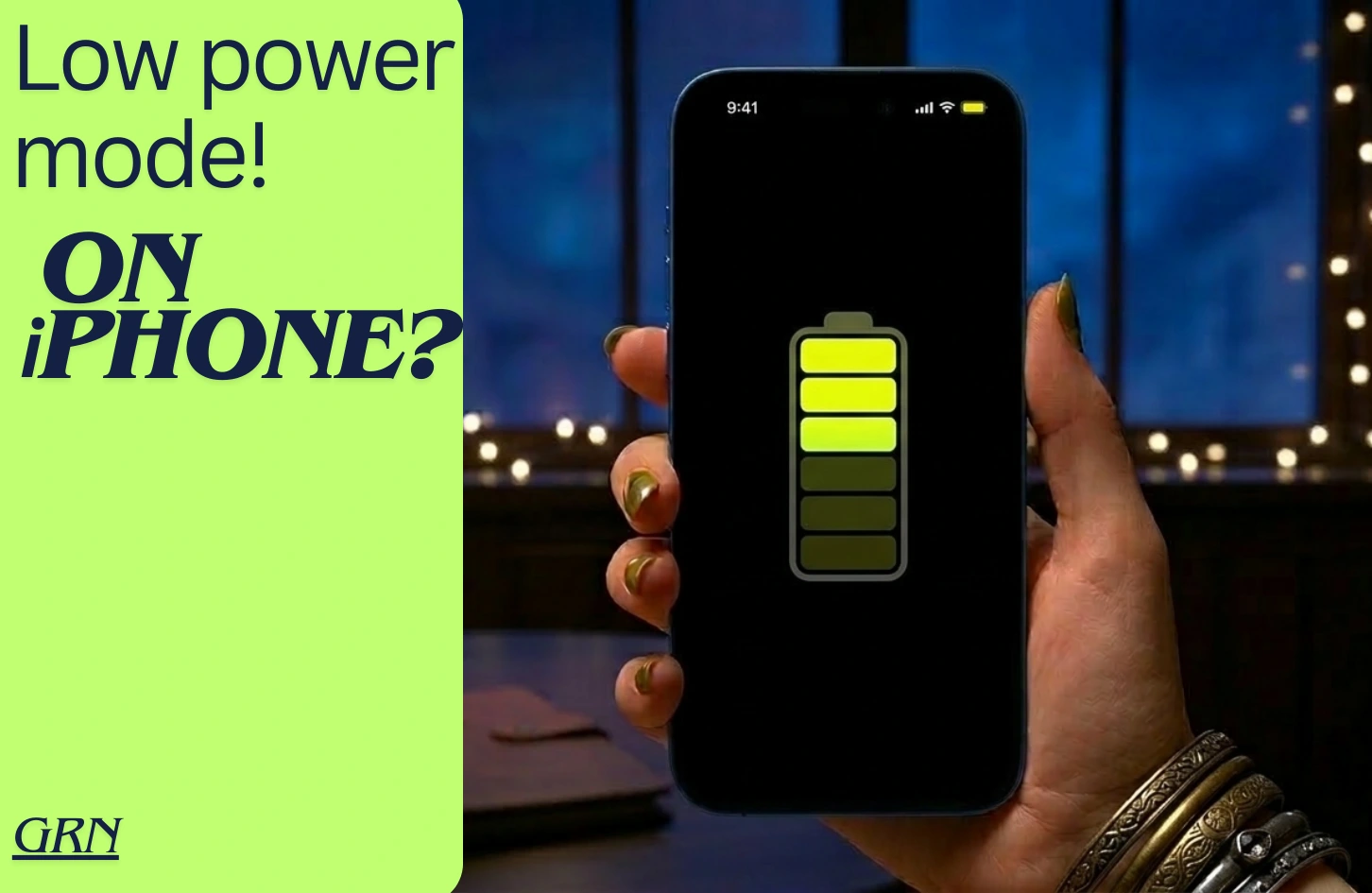
We have all faced those moments of requiring more power. It happens most of the time when we are away from our chargers. For that very reason, sometimes we tend to look for ways to save power on our iPhones. As a matter of fact, power saving mode or low power mode are great ways to save iPhone battery even further. It’s the best thing Apple included from 2017.
So, if you are wondering how to turn on power saving mode on iPhone?, then you’ve come to the right place. As of today we will learn 3 simple ways to do it. Let’s jump right in.
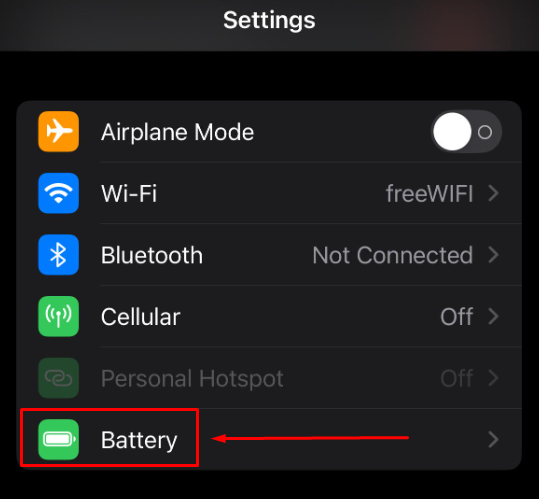
Step 1: Go to SETTINGS option from home screen
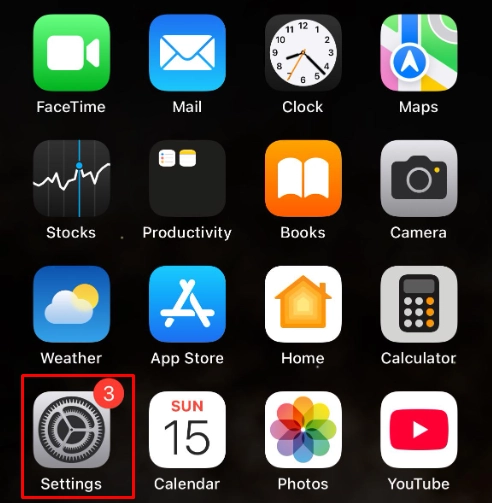
- Scroll down a bit to find a logo with battery
Step 2: Tap on Battery option
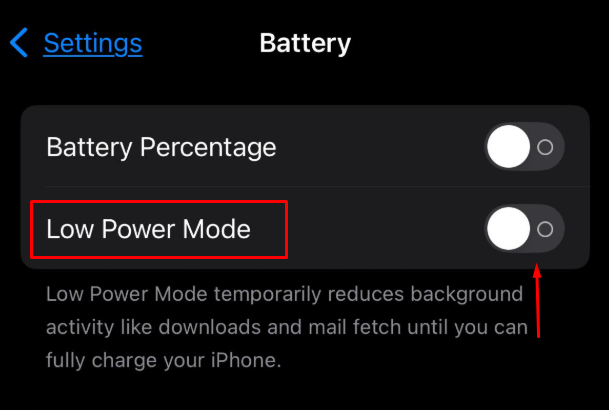
- You will see an option called “Low Power Mode” below battery percentage
Step 3: Tap the toggle of Low Power Mode
Step 4: Select “Continue” to confirm the finish the process
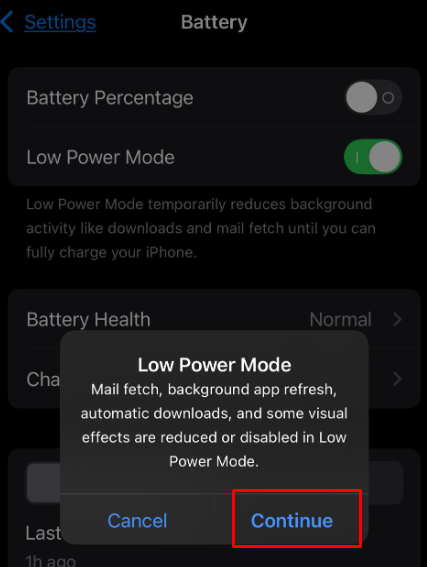
- After you have selected “continue” and confirmed the process, you will see the toggle has turned green and your battery icon (top right corner) has turned slightly yellow.
- Meaning you have successfully turned on the “Low Power Mode on iPhone.
**Quick Note: When you turn on this “Low Power Mode”, your iPhone apps will function slower than it usually does.
When will “Low Power Mode” becomes very useful?
- When you require more power during emergencies;
- While traveling to longer distance;
- When you plan to reduce the background activity of your apps
- If you are an extreme battery saver.
Final Words
If you have followed the steps thoroughly, then you have simply activated “Low Power Mode” on your iPhone.
As for last few words, it’s always useful to turn on power saving mode on iPhones to have extra power. While do remember to turn the mode off when you are in need for faster app load and data receiving. As always, stay tuned to GRN page to remain updated about latest tech news and tutorials.