We all love to customize our iPhones in our preferred style. Whether it’s about themes or changing the widgets with our favorite colors, making every setting perfect is what we love to do.
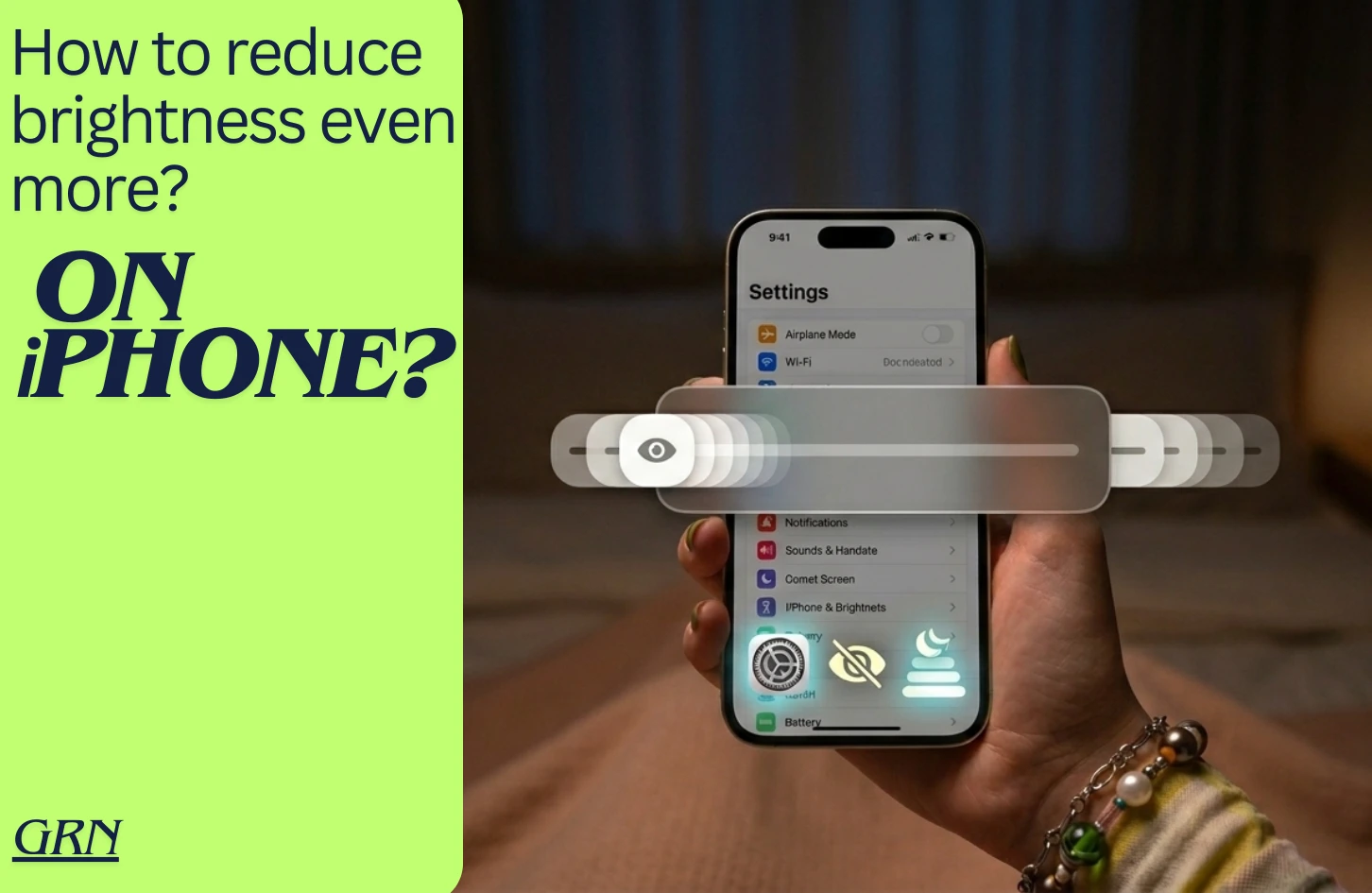
One thing we always tend to change very often is our phone’s brightness. Proper brightness level makes it easy to view contents. Depending on circumstances we like to change the right brightness that goes with the moment. Although some users want to go even further. What if there was a way to reduce your iPhone brightness even more? Let’s find out the process down below:
Reduce iPhone brightness even more
It’s not a regular brightness setting, and that is why you can’t find this option in the basic display settings. To enable more reduced brightness, you can follow a simple built-in option in Apple iPhone. You don’t need any third-party software to do that. The process is given below:
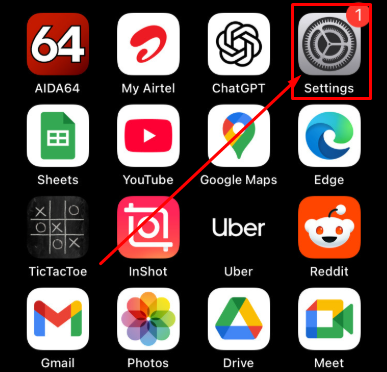
Step-1: Go to Settings
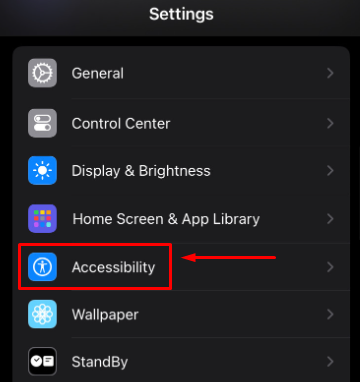
Step-2: Scroll down & tap “Accessibility”
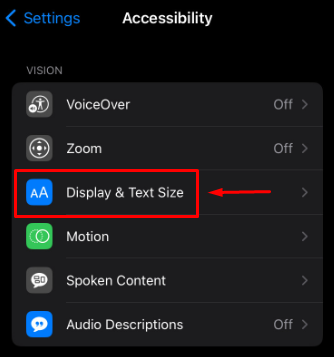
Step-3: Tap on “Display & Text Size” option
> Scroll down to the bottom, and you will find “Reduce White Point”. This option could be turned on or off depending on your previous settings.
Step-4: Enable “Reduce White Point”
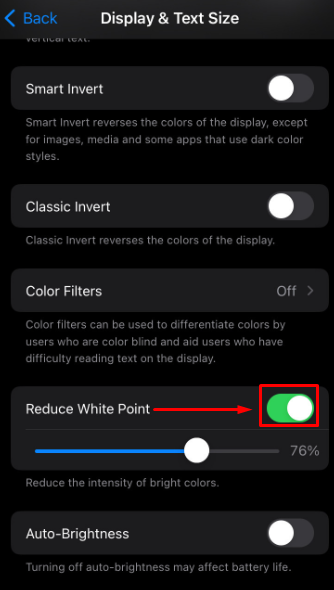
- If the “Reduce White Point” option is toggled off, turn it on by simple tap;
- When turned on, you will see a sliding option appeared below;
Step-5: Adjust Reduce White Point
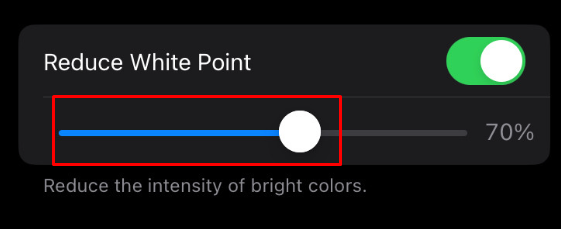
- Using the slider, you can adjust the white point depending on your preferred brightness;
- You can choose as low as 25% (Which is the lowest and brightest white point option)
- Or you can choose as high as 100% (Which is the darkest white point option)
As you are trying to reduce the iPhone brightness even more, it’s recommended to adjust the “white point” slider bar to as high as possible depending on your preferred brightness.