
03-15-2026
Written By -
Gadget Right Now
We have all faced those moments of requiring more power. It happens most of the time when we are away from our chargers. For that very reason, sometimes we tend to look for ways to save power on our iPhones. As a matter of fact, power saving mode or low power mode are great ways to save iPhone battery even further. It’s the best thing Apple included from 2017.
So, if you are wondering how to turn on power saving mode on iPhone?, then you’ve come to the right place. As of today we will learn 3 simple ways to do it. Let’s jump right in.
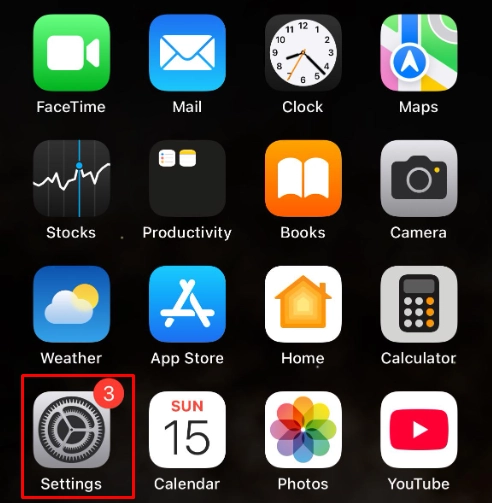
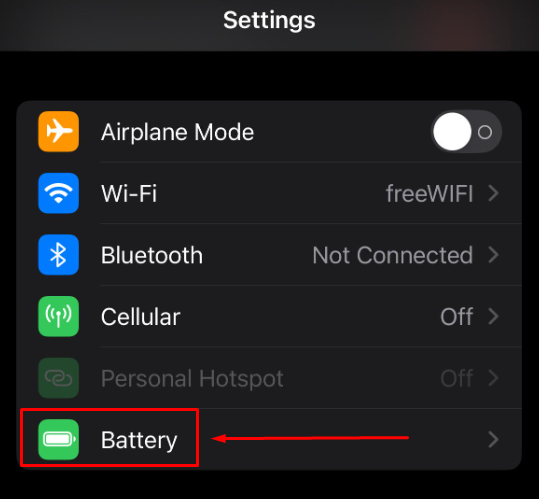
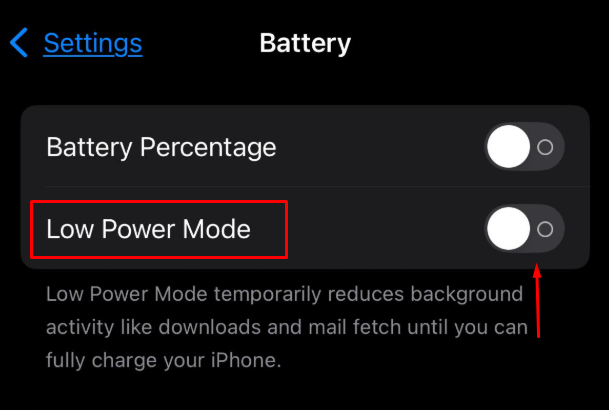
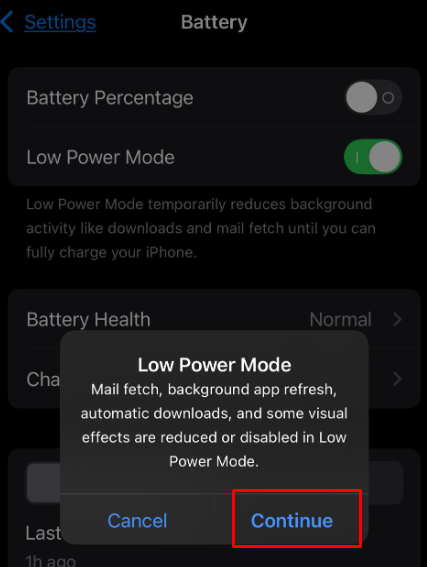
**Quick Note: When you turn on this “Low Power Mode”, your iPhone apps will function slower than it usually does.
If you have followed the steps thoroughly, then you have simply activated “Low Power Mode” on your iPhone.
As for last few words, it’s always useful to turn on power saving mode on iPhones to have extra power. While do remember to turn the mode off when you are in need for faster app load and data receiving. As always, stay tuned to GRN page to remain updated about latest tech news and tutorials.
Disclaimer
Due to continuous innovation & improvements, official specification is subject to change without notice. Accessories shown in the picture may or may not be a part of the standard equipment with the product. Model availability and features may vary based on region or version.
We try to deliver updated leak or rumor information from manufacturer websites, other reliable and trusted sources. It is advised to verify important details before making any decision about your desired product. Please inform us if you have found any mistake or wrong information.
Tips & Tricks
March 12, 2026
How to Clear Cache on iPhone
Tips & Tricks
March 4, 2026
How to Reduce iPhone Brightness Even More?